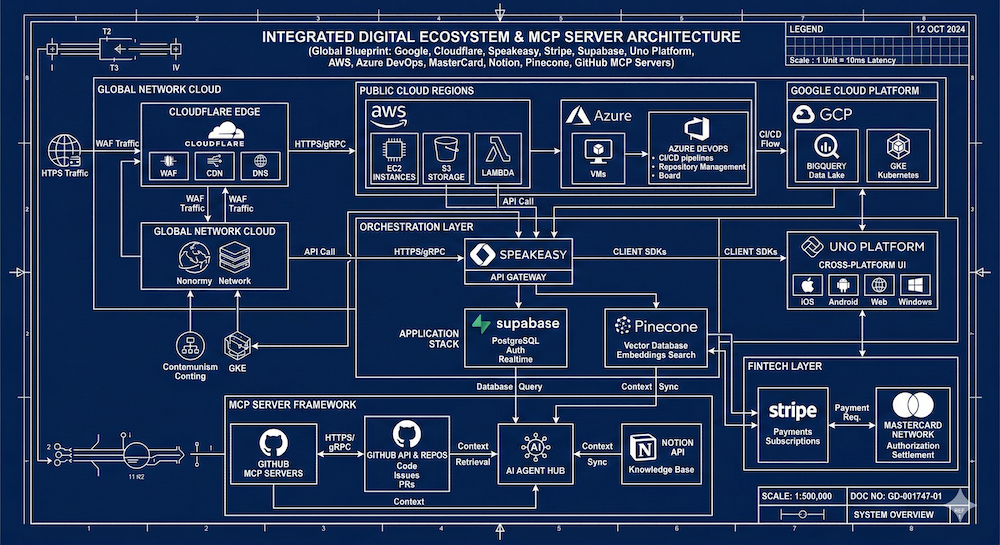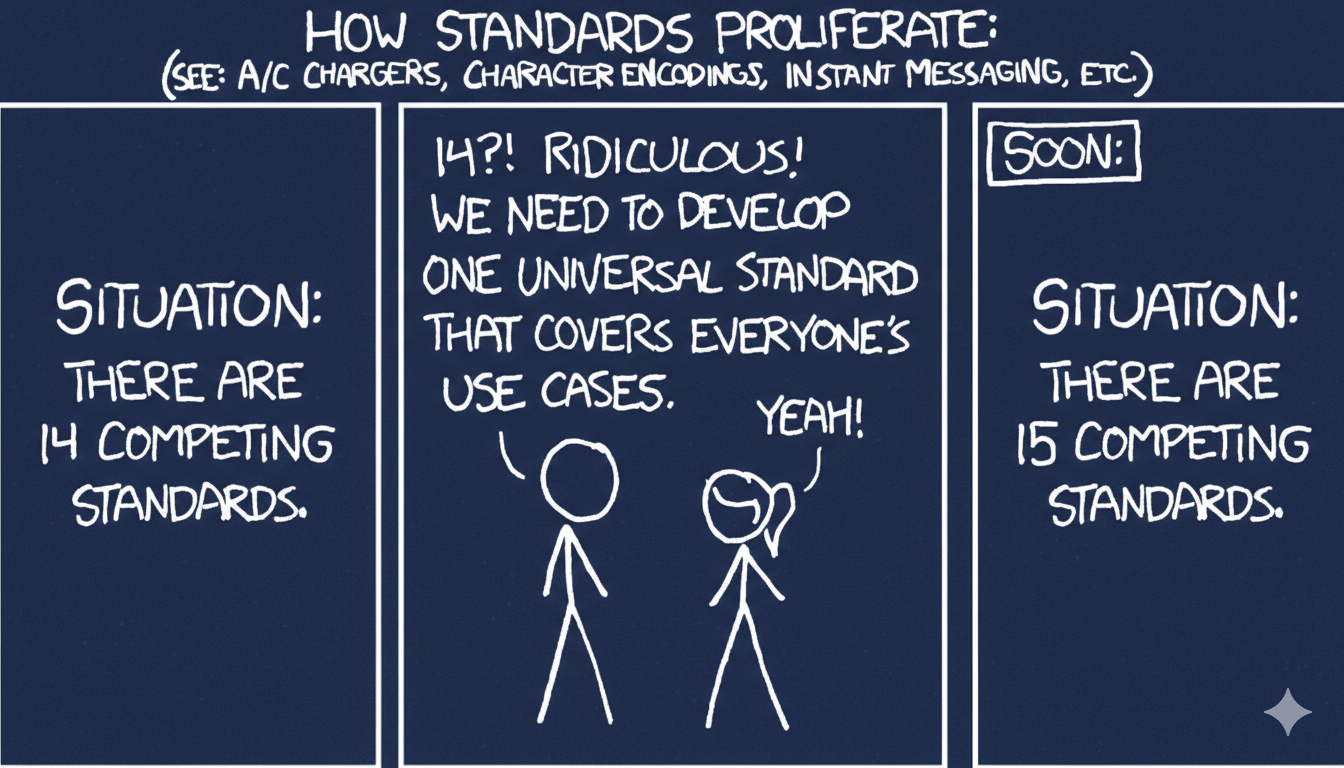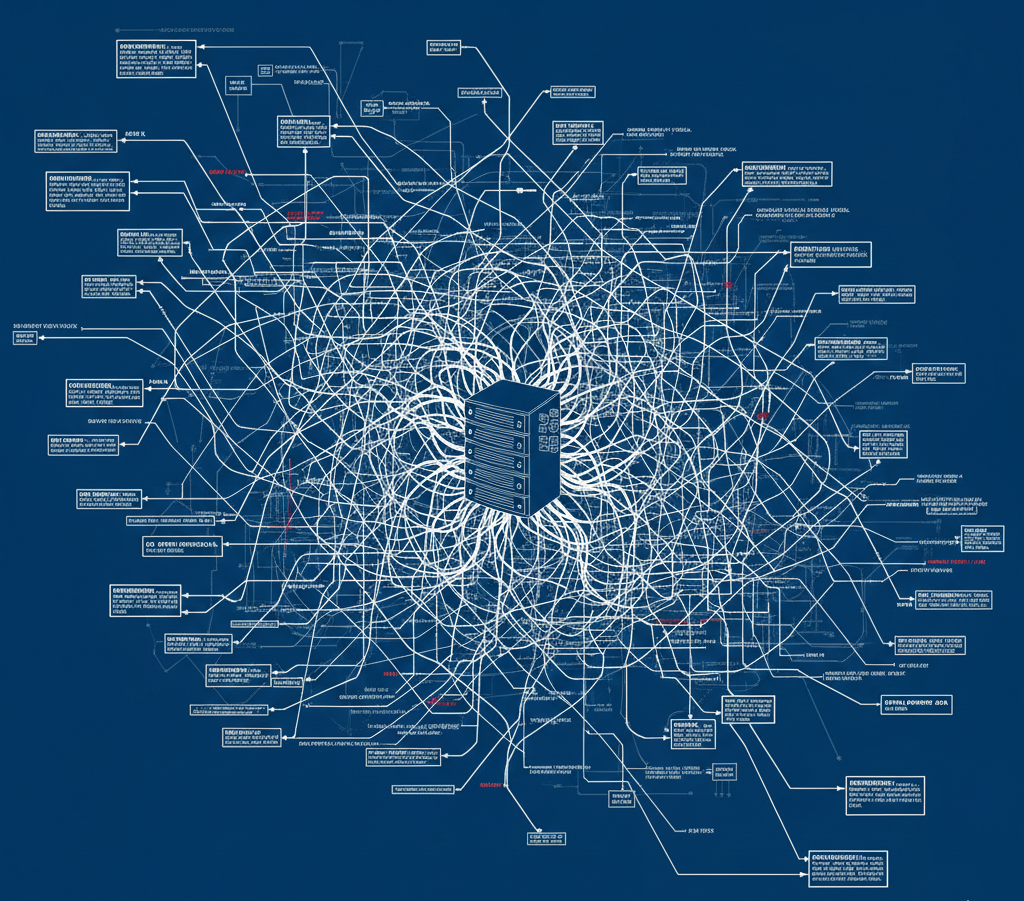


If you've spent any time connecting AI agents to your development workflow, you know the feeling: a dozen JSON config files scattered across your machine, each with slightly different schemas, different key names, and different scoping rules. You set up a GitHub MCP server in VS Code, then have to do it again in Cursor, then again in Claude Code, then realize your teammate has no idea which servers the project depends on.
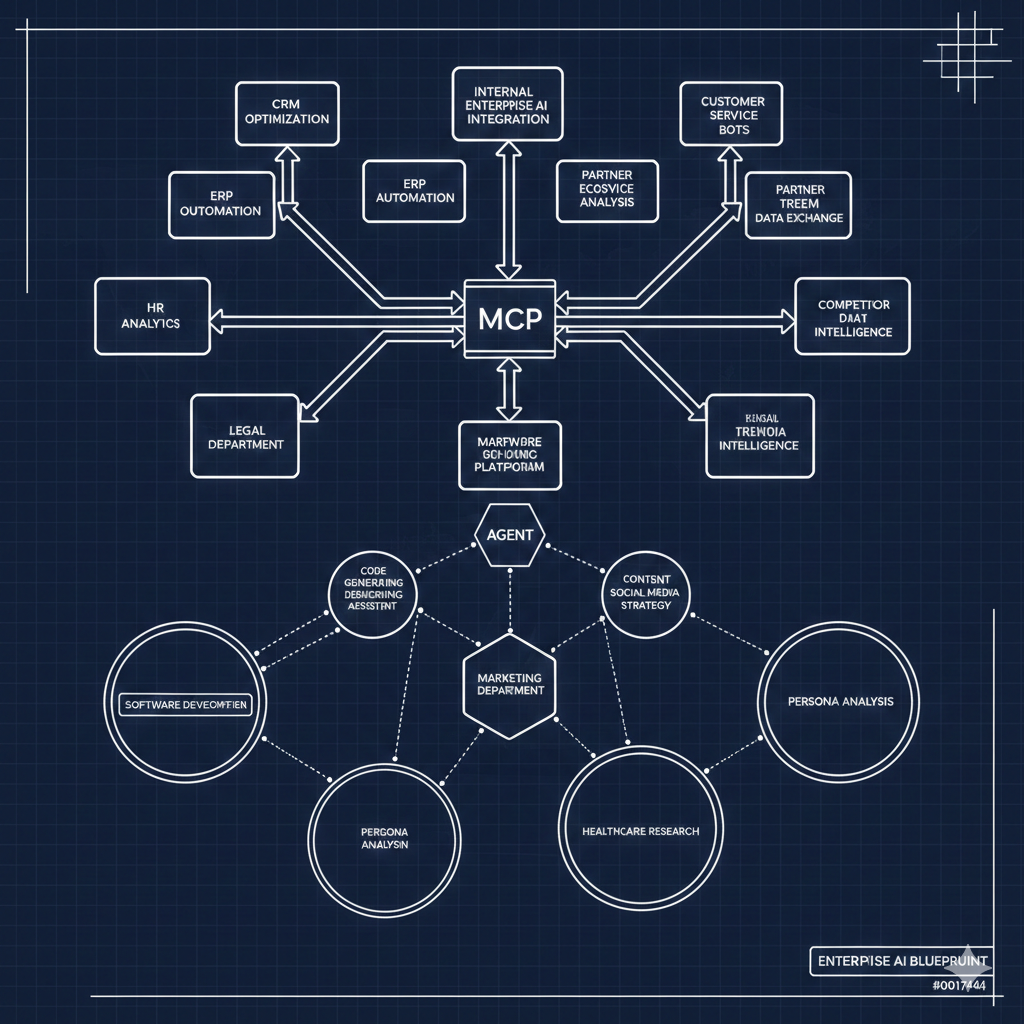
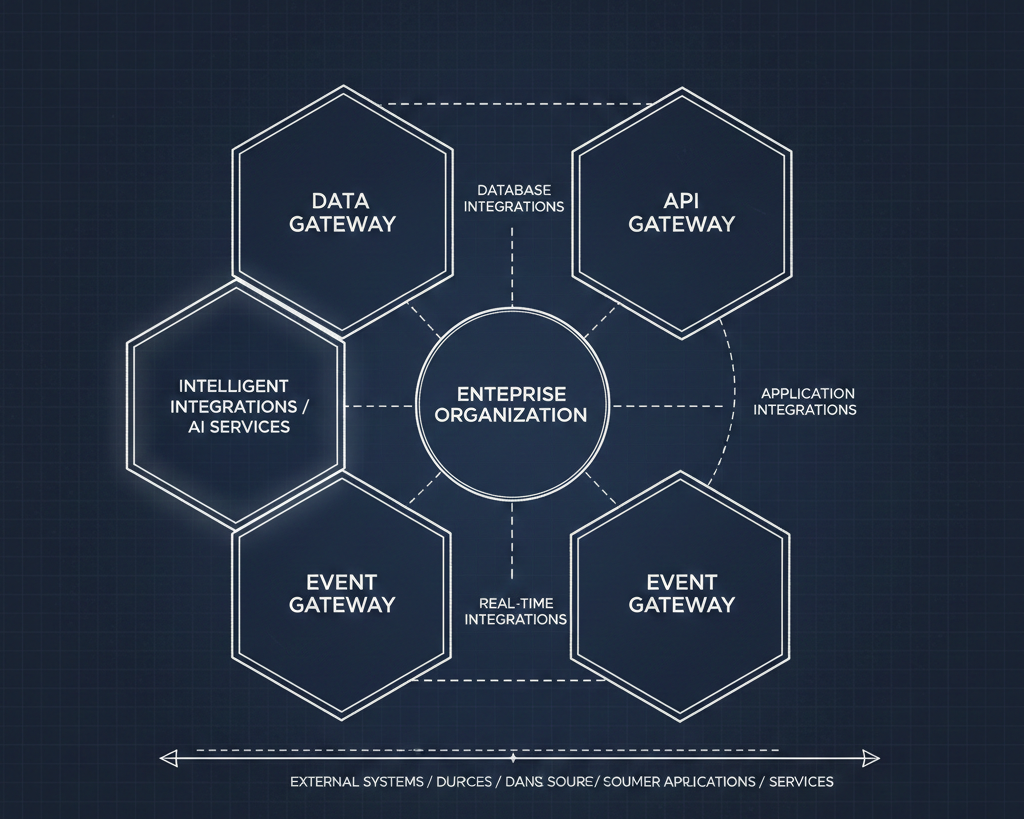
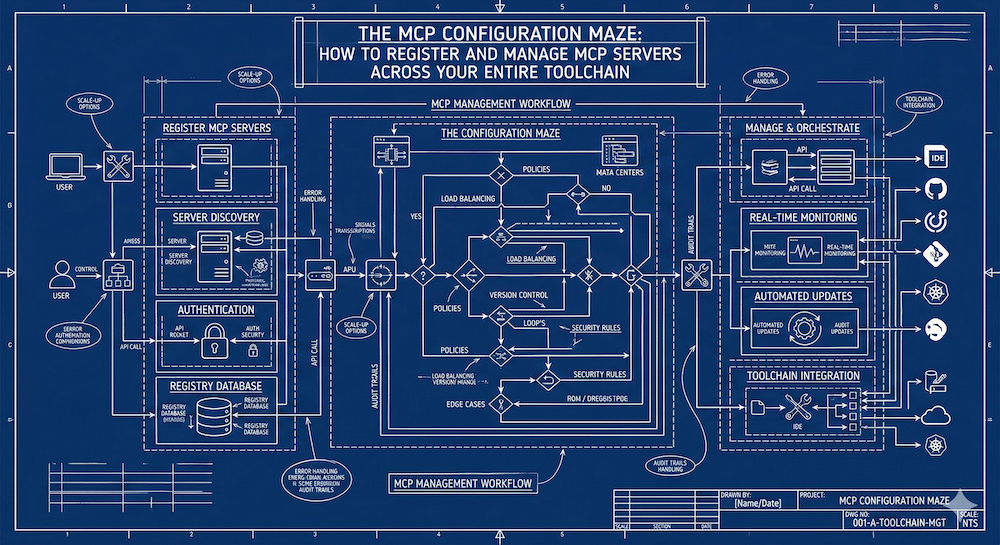
The Model Context Protocol has become the connective tissue of agentic development. But managing MCP servers isn't a single decision — it's a decision across three distinct layers: where your servers are registered and discovered (source control and registries), where they run (your IDE), and where they're consumed (your AI client). Getting all three layers right is what separates a team that flows from one that's constantly re-configuring.
This post walks through each layer, the tools available today, and a practical strategy for keeping your MCP setup sane as the ecosystem grows.
Layer 1: Source Control and Discovery — Where Servers Are Found and Governed
Before anyone on your team can use an MCP server, two things need to happen: someone needs to find the right server, and your organization needs to approve it. This is the source control layer — the registries, org-level policies, and version-controlled config files that determine what's available.
The GitHub MCP Registry
The fragmentation problem for MCP discovery has been real. Servers were spread across npm, random GitHub repos, community threads, and half a dozen unofficial directories. GitHub's MCP Registry (at github.com/mcp) launched in late 2025 as the first serious attempt at a canonical discovery surface. Every server listed is backed by its GitHub repository, and VS Code users can install many of them with a single click.
Behind the scenes, the registry is evolving toward a two-tier model. The open-source MCP Community Registry (maintained by the Model Context Protocol steering committee at github.com/modelcontextprotocol/registry) allows developers to self-publish servers using a CLI tool and a server.json manifest. Servers published there are intended to surface automatically in the GitHub MCP Registry, creating a unified pipeline from publication to discovery. The community registry API entered an API freeze at v0.1 in late 2025, signaling stability for integrators.
For teams, the practical takeaway is this: if you're building an MCP server for internal or public use, publish a server.json to the community registry with a namespace like io.github.yourorg/your-server, and it becomes discoverable across the ecosystem.
GitHub Organization-Level Governance
Discovery is one thing. Governance is another. GitHub provides two distinct levers for organizations using Copilot:
Registry configuration lets org admins control which MCP registries members can pull servers from. By default, the GitHub MCP Server Registry is available, but admins can restrict or expand the list. This is configured through your organization's Copilot admin settings and determines what shows up when developers browse for servers in their IDE.
Server access policies go a step further, letting admins control which specific MCP servers (and which of their tools) are allowed within the organization. This matters because MCP servers can execute arbitrary code, access credentials, and interact with external APIs. An org policy might allow the GitHub MCP server but block a third-party database server that hasn't been security-reviewed. These policies apply to Copilot's coding agent and chat features, and the configuration lives in your organization's Copilot admin panel under "Manage MCP usage."
The combination gives security teams a familiar approve/deny workflow: registries control the supply side, and server access policies control the demand side.
GitLab's Approach
GitLab takes a somewhat different path. Rather than an external registry, GitLab provides a built-in MCP server that ships with the platform itself (currently in beta as of GitLab 18.6+). External AI tools connect to your GitLab instance directly at https://your-instance.com/api/v4/mcp, using OAuth 2.0 with Dynamic Client Registration. This means Cursor, Claude Code, or Claude Desktop can register themselves with your GitLab instance and access project data, issues, merge requests, and more — all governed by your existing GitLab permissions.
On the client side, GitLab Duo features can also act as MCP clients, connecting to external MCP servers. Group admins enable this under the "External MCP tools" setting, and workspace-level configuration lives in <workspace>/.gitlab/duo/mcp.json. User-level configuration goes in ~/.gitlab/duo/mcp.json. The GitLab Language Server loads and merges both, so you can have personal servers alongside project-specific ones.
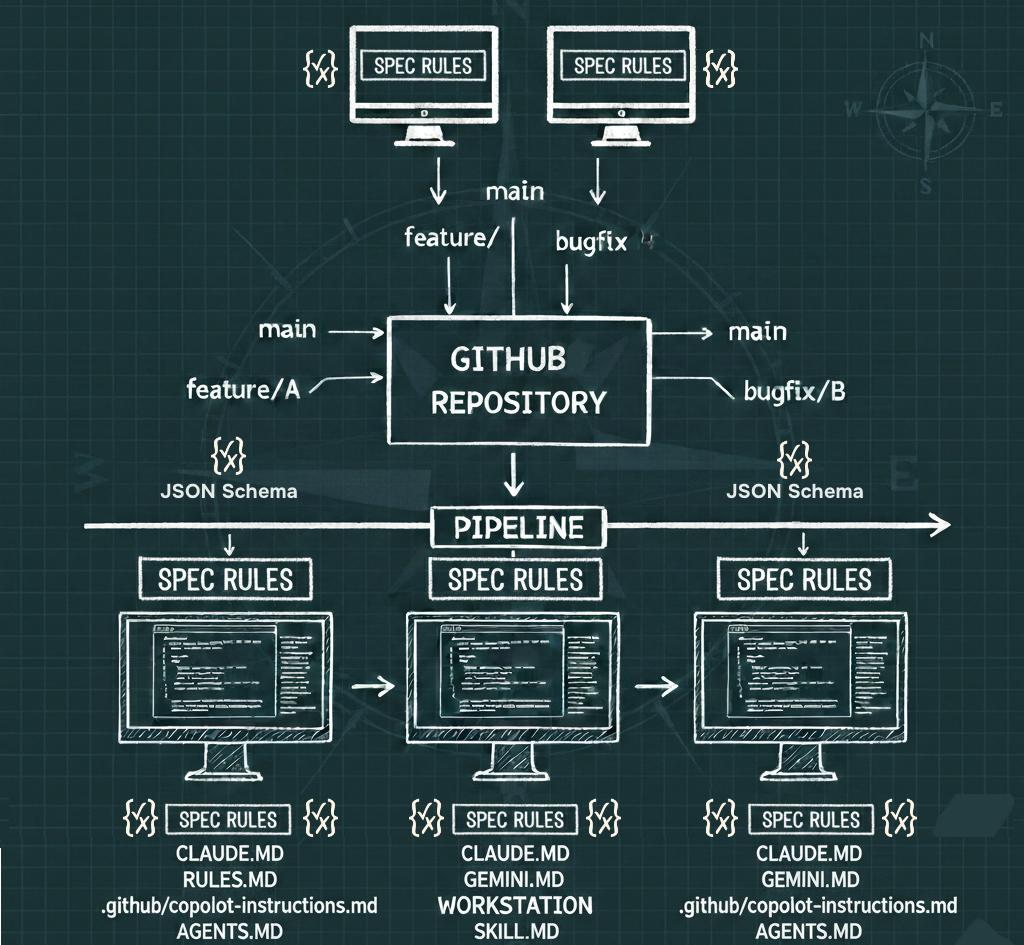
Version-Controlling Your MCP Config
Across all platforms, one pattern is consistent: the project-level MCP config file belongs in source control. In VS Code that's .vscode/mcp.json. In GitLab it's .gitlab/duo/mcp.json. In Claude Code it's .mcp.json at the project root (with --scope project). Checking this file in means every team member gets the same server definitions when they clone the repo. Personal servers — the ones tied to your own API keys or preferences — stay in user-level config files that are not committed.
Layer 2: The IDE — Where Servers Run and Are Managed
Your IDE is where MCP servers actually start, stop, and expose their tools. Each IDE has its own configuration surface, but they've converged on a remarkably similar JSON format.
VS Code
VS Code has the deepest MCP integration of any IDE today, which makes sense given its tight coupling with GitHub Copilot. There are five ways to add an MCP server:
- Workspace config: Create
.vscode/mcp.jsonin your project. This is the one you commit to source control. - User profile: Run
MCP: Open User Configurationfrom the Command Palette. This stays local to your machine. - Extension Marketplace: The MCP server gallery (backed by the GitHub MCP Registry) lets you browse and install servers with a click.
- Auto-discovery: VS Code can detect MCP configs from other tools like Claude Desktop.
- Command line: Use
--add-mcpfrom the VS Code CLI.
The config format supports stdio (local process), http (remote/streamable HTTP, with SSE fallback), and even Unix sockets. A key feature is the inputs array, which lets you define placeholders for secrets like API keys — VS Code prompts you on first use and stores the value securely, keeping credentials out of your config files.
Once configured, VS Code shows inline CodeLens controls in the mcp.json file to start, stop, and restart servers. Errors surface in the Chat view with a direct link to server logs. With Settings Sync enabled, your MCP server configurations can follow you across machines.
JetBrains IDEs (IntelliJ, PyCharm, WebStorm, etc.)
JetBrains added MCP client support in the 2025.1 release and then integrated a built-in MCP server starting in 2025.2. This dual role is worth understanding:
As an MCP client (connecting to servers): Go to Settings → Tools → AI Assistant → Model Context Protocol (MCP). You can add servers via JSON configuration, import from Claude Desktop, or set up through the UI. Servers can be scoped globally or per-project. The JSON format follows the same mcpServers convention used everywhere else. For remote servers, you can simply provide a URL for streamable HTTP transport.
As an MCP server (exposing IDE tools to external clients): Starting in 2025.2, the IDE itself exposes tools like file search, code inspection, running configurations, and terminal commands over MCP. External clients like Claude Code or Cursor can connect to your running IDE. Configuration is handled from Settings → Tools → MCP Server, with an "Auto-Configure" button for popular clients that writes the appropriate JSON to their config files automatically.
This bidirectional support means you can have Claude Code orchestrate refactors in IntelliJ while IntelliJ's AI Assistant simultaneously uses a database MCP server for schema lookups. The IDE acts as both hub and spoke.
Cursor
Cursor keeps things straightforward. MCP configuration lives in its settings panel under Settings → Cursor Settings → Tools & MCP. You add servers as JSON, and they're available globally. The format matches the standard mcpServers object. Cursor has a notable limitation: it imposes a 40-tool limit, which means you may need to be selective about which servers and toolsets you enable. Some server authors (like the GitLab community server) offer a read-only mode specifically to stay within this budget.
Windsurf
Windsurf's MCP configuration lives at ~/.codeium/windsurf/mcp_config.json. You can edit this file directly or use the built-in MCP marketplace accessible from the Cascade panel. Windsurf supports stdio, streamable HTTP, and SSE transports. A distinguishing feature is per-tool toggling — rather than enabling or disabling an entire server, you can pick exactly which tools the Cascade agent has access to. This is important because Windsurf also has a tool budget (around 100 tools). Enterprise and Teams plans include admin whitelisting, where organizations can restrict which MCP servers developers install using regex pattern matching.
Layer 3: The AI Client — Where Servers Are Consumed
The AI client is the model-facing surface — the application that actually sends prompts, invokes tools, and processes results. Some AI clients are embedded in IDEs (like Copilot in VS Code), while others are standalone.
Claude Code
Claude Code is Anthropic's terminal-based AI coding tool, and it has first-class MCP support with a dedicated CLI for server management. The core commands are:
claude mcp add <name>— adds a server interactivelyclaude mcp add-json <name> '<json>'— adds from a JSON snippetclaude mcp list— shows all configured serversclaude mcp remove <name>— removes a serverclaude mcp get <name>— inspects a server's config and status
Scoping is explicit and important. The --scope flag controls where the config is stored: local (default, private to you in the current project), project (written to .mcp.json in the project root, shareable via source control), or user (available everywhere for you). This three-tier scoping maps cleanly to the "personal vs. team vs. global" distinction that matters in practice.
Claude Code supports stdio, SSE, and HTTP transports, and can authenticate with remote servers via OAuth 2.0. The /mcp command within a session lets you check server status and trigger OAuth flows. For configuration beyond what the CLI wizard handles, many developers prefer editing ~/.claude.json directly.
One powerful pattern: Claude Code can act as both an MCP client (connecting to servers like GitHub or Postgres) and an MCP server (exposing its own tools to other clients via claude mcp serve). This enables agent-to-agent orchestration — a Cursor session can delegate complex tasks to Claude Code running as an MCP server.
Claude Desktop
Claude Desktop uses a single JSON config file for MCP servers:
- macOS:
~/Library/Application Support/Claude/claude_desktop_config.json - Windows:
%APPDATA%\Claude\claude_desktop_config.json - Linux:
~/.config/Claude/claude_desktop_config.json
The format is the standard mcpServers object. Because Claude Desktop doesn't have a built-in package runner, local servers typically launch via npx, uvx, or Docker. Remote servers can be added via Settings → Connectors → "Add custom connector." Claude Desktop's MCP support was the original reference implementation for the protocol, and many server READMEs still provide Claude Desktop config examples as the default.
Cursor (as AI Client)
When Cursor operates in Agent mode, it consumes tools from configured MCP servers. The experience is integrated — you toggle to Agent mode in the chat panel, and MCP tools appear in the tools picker alongside built-in capabilities. Cursor asks for confirmation before running tools, and you can review the model-generated input parameters before execution. The tight coupling between Cursor's IDE layer and its AI client layer means there's no separate config to manage: the servers you add in Cursor Settings are immediately available to the agent.
Windsurf (as AI Client)
Similarly, Windsurf's Cascade agent consumes MCP tools directly from the servers configured in mcp_config.json. You toggle between Write and Chat modes, and MCP tools are accessible in Chat mode. The per-tool toggling UI means you can fine-tune exactly what Cascade can access for each conversation, which is helpful when you want to restrict the agent's capabilities for specific tasks.
Putting It All Together: A Practical Strategy
With three layers and a dozen tools, here's a strategy that scales:
For your team: Pick your MCP servers carefully. Put project-specific server definitions in the version-controlled config file (.vscode/mcp.json, .mcp.json, or .gitlab/duo/mcp.json). Document which servers the project depends on and what API keys or tokens team members need to provision. If you're on GitHub Enterprise or GitLab, use org-level policies to approve the servers your teams need and block everything else.
For yourself: Keep personal servers (like a notes MCP or a personal API wrapper) in user-level config. Use --scope user in Claude Code or the user profile config in VS Code. Don't commit your API keys — use input variables or environment variables instead.
For consistency across tools: Accept that you'll have some duplication. A server configured in VS Code isn't automatically available in Claude Code or Cursor. The JSON format is similar enough across tools that you can copy-paste configs with minor adjustments. Some tools (like JetBrains' auto-configure feature) reduce this friction, but full cross-tool sync doesn't exist yet.
For security: Treat MCP servers like any third-party dependency. Review the source. Understand what tools they expose. Use read-only modes where available. Prefer Docker-based servers for isolation. And never put secrets in plain text in config files that might be committed to source control — use input variables, environment variables, or credential helpers instead.
The MCP ecosystem is moving fast. The GitHub MCP Registry, the community registry's API freeze, and org-level governance tools all signal that the infrastructure for managing MCP servers at scale is maturing. The tools may not be perfectly unified yet, but the patterns are clear enough to build on today.
Further reading and reference links:
- Model Context Protocol — Clients
- GitHub MCP Registry
- GitHub Docs — Configure MCP Registry
- GitHub Docs — Configure MCP Server Access
- GitLab MCP Clients
- VS Code — MCP Servers
- JetBrains — AI Assistant MCP
- Claude Code — MCP
- Claude Desktop — Connect Local Servers
- Cursor — MCP
- Windsurf — MCP